
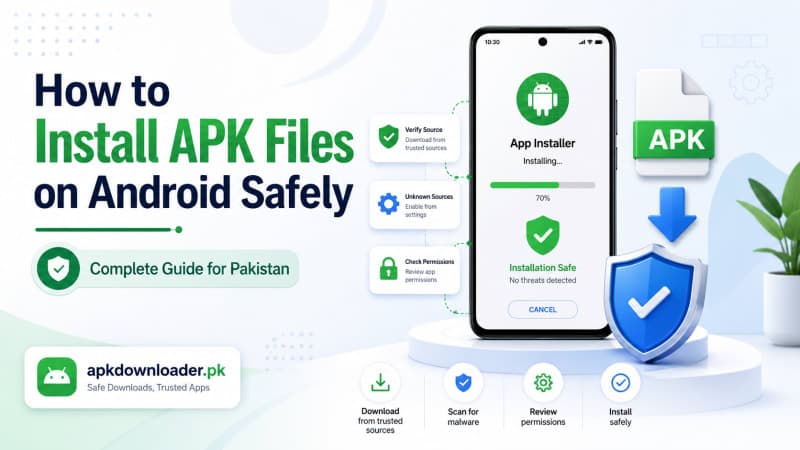
An APK can put an app on your Android phone in less than a minute. The real work happens before you tap Install.
You need to confirm that the file came from the correct developer, supports your phone, and doesn’t ask for permissions that have nothing to do with the app’s purpose. This matters even more when an APK arrives through WhatsApp, Telegram, Facebook, or an unfamiliar download page.
This guide explains how to install APK files on Android safely, where to find the Install unknown apps setting, and what Allow from this source actually does. You’ll also learn how to fix parsing errors, app crashes, version conflicts, and other common installation problems.
The steps work on most Samsung, Xiaomi, Redmi, Oppo, Vivo, Infinix, Tecno, and Google Pixel phones used in Pakistan. Menu names may differ slightly between brands and Android versions.
Quick answer
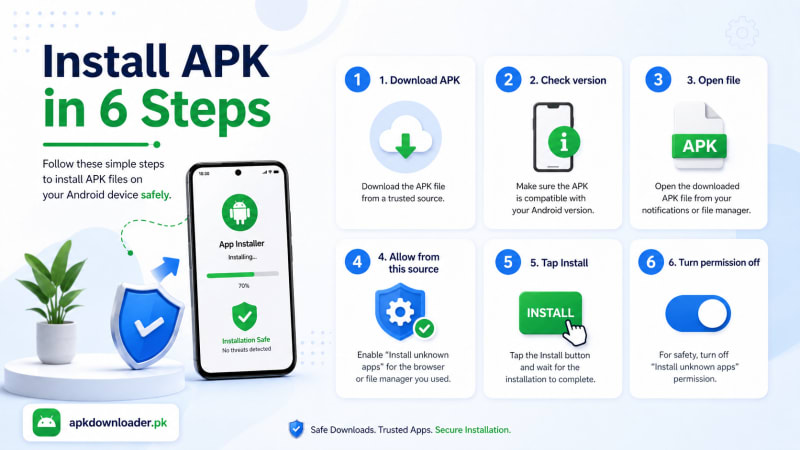
Download the APK from a verified source, check its version and requirements, open it through your browser or file manager, enable Allow from this source, tap Install, and switch the permission off again when you’re done.
Quick Summary: Install an APK in Six Steps
- Download the APK from the official developer or another source you’ve checked carefully.
- Confirm the app version, package name, file size, and Android requirements.
- Open the file from your browser notification or Downloads folder.
- Tap Settings when Android blocks the installation.
- Enable Allow from this source, return to the installer, and tap Install.
- Review the app’s permissions and disable unknown-app access afterward.
Google Play Protect checks apps during installation and continues scanning the device for potentially harmful software. Google recommends keeping it enabled, including when installing apps from outside Google Play.
APK Quick Facts
| Item | What It Means |
|---|---|
| File extension | .apk |
| Full name | Android Package Kit |
| Main purpose | Installing an Android application |
| Common file location | Downloads folder |
| Installation tool | Android Package Installer |
| Main security check | Google Play Protect |
| Required permission | Install unknown apps or Allow from this source |
| Can you delete the APK later? | Yes, once the app is installed |
| Are updates automatic? | Not always |
| Does every APK install directly? | No; split APK, XAPK, and APKM files work differently |
What Is an APK File?
An APK is the installation package used by Android applications. It contains the files Android needs to place an app on your phone, including its code, resources, settings, and signing information.
When you install an app through Google Play, the store handles the download and installation in the background. With a manual APK file download, you obtain the package yourself and choose when to install it.
This process is also known as sideloading.
People may install APK files because:
- An app isn’t available on Google Play
- A developer distributes it through an official website
- The app is in private or beta testing
- A regional release isn’t available in Pakistan
- An older phone requires a previous app version
- An open-source project uses direct distribution
Manual installation gives you more control. It also shifts more responsibility onto you because you must check the source, compatibility, and requested permissions yourself.
Key Features of Manual APK Installation
Direct Access to Developer Releases
Some developers publish Android apps directly on their websites. This can give users access to private releases, beta builds, or apps that aren’t listed in a store.
More Control Over Versions
A manual installation may let you select an older or device-specific version. This is useful when a new release no longer works well on an older phone.
Access Outside Google Play
Some apps are distributed independently because of regional, commercial, or platform restrictions. You can browse APK listings and app reviews on the APK Downloader games page, but the final download should still be checked before installation.
Manual Update Decisions
An APK-based app may not update automatically. You’ll often need to compare the installed version with the developer’s latest release and install the update yourself.
Greater Security Responsibility
Google Play provides store-level checks, compatibility filtering, and automatic updates. When you install an app manually, you take on more of those checks.
Android Requirements Before Installing an APK
Most standard APK files will install if your phone meets a few basic requirements.
Your Phone Should Have
- A compatible Android version
- Enough free internal storage
- Google Play Protect enabled
- A working browser or file manager
- A complete, uncorrupted APK file
- The correct version for your device
- A stable connection during the download
You can usually check your Android version under:
Settings → About phone → Android version
On some devices, the option appears under Software information.
Check Storage Before You Start
The downloaded APK size isn’t the same as the final installed size. A 30 MB file may need considerably more room after Android extracts and installs its contents.
As a practical rule, keep at least two or three times the APK’s stated size available. More space may be needed for games that download additional data after opening.
How to Check the Latest APK Version
A file labeled “latest version” isn’t automatically current, compatible, or genuine.
Before downloading, compare the following details:
| Detail | Why It Matters |
|---|---|
| Version name | Identifies the release shown to users |
| Version code | Helps Android determine whether an update is newer |
| Release date | Shows when the file was published |
| File size | Helps spot incomplete or suspicious downloads |
| Minimum Android version | Confirms whether your phone is supported |
| Package name | Identifies the actual application |
| Developer name | Helps confirm the publisher |
| Update notes | Explains bug fixes or new features |
| Architecture | Shows whether the app supports ARM, ARM64, or another device type |
The newest build isn’t always the right one. A recent version may require a newer Android release, more storage, or a different processor architecture.
Helpful note
Be cautious with files promoted as “premium unlocked,” “unlimited money,” “mod menu,” or “no verification.” Those phrases often indicate that the original app has been altered.
Safety Checklist Before Downloading an APK
Run through this checklist before opening any installer:
I can identify the app’s developer
The download comes from the developer or a source I’ve verified
The domain name is spelled correctly
The version supports my Android release
The package name matches the expected app
The file size looks reasonable
The download completed without interruption
Google Play Protect is still enabled
The page has one clear download button
The app’s permissions match its stated purpose
The source doesn’t ask me to disable every security feature
I understand whether the file is APK, XAPK, APKM, or APKS
For a clearer look at the site’s checking process, see How We Review APKs. The page explains how sources, package details, app features, and known risks are evaluated before a listing is published.
Warning: Stop when the permissions don’t make sense
A simple game shouldn’t need device-administrator control. A calculator shouldn’t require SMS access. A wallpaper app shouldn’t demand your contacts, microphone, and accessibility settings.
How to Prepare Your Android Phone
Good preparation prevents many installation errors and gives you a safer way to test an unfamiliar app.
Update Android
Open Settings → Software update or Settings → System → System update. Install available security patches before adding apps from outside Google Play.
Back Up Important Files
Save important contacts, documents, photos, and account information. A backup is especially sensible before testing an app from a developer you haven’t used before.
Keep Play Protect Active
Google Play Protect checks apps at installation and periodically scans installed applications. It may warn you, block an app, disable it, or remove it when harmful behavior is detected.
Close Unnecessary Apps
Closing large games, video apps, and file transfers can free memory and reduce the chance of your installer freezing.
Remove Conflicting Old Files
Delete incomplete downloads of the same APK. Don’t keep several copies with names such as:
app.apkapp-1.apkapp-final.apkapp-new-latest.apk
Keeping one clearly identified file makes troubleshooting much easier.
Where Is “Install Unknown Apps” on Android?
Android usually grants installation permission to a specific source app, not to every app on the phone.
For example, if you downloaded the APK through Chrome, you enable permission for Chrome. If you opened it through Files by Google, you may need to allow that file manager instead.
Common Settings Paths
| Phone Brand | Common Menu Path |
|---|---|
| Google Pixel | Apps → Special app access → Install unknown apps |
| Samsung | Security and privacy → More security settings → Install unknown apps |
| Xiaomi/Redmi | Privacy protection or Special permissions → Install unknown apps |
| Oppo | Apps or Security → Special app access → Install unknown apps |
| Vivo | Apps → Special app access → Install unknown apps |
| Infinix | Apps or Special function → Install unknown apps |
| Tecno | App management or Special app access → Install unknown apps |
Manufacturers sometimes rename or move the setting after software updates. Use the Settings search bar and type:
- Install unknown apps
- Unknown sources
- Special app access
- Allow from this source
How to Install APK Files on Android
You can install a standard APK through a browser, file manager, or computer.
Method 1: Install an APK Through Chrome
- Open Chrome on your Android phone.
- Visit the developer’s official website or a source you’ve checked.
- Tap the correct APK download button.
- Read the browser’s warning before confirming.
- Wait for the download to finish.
- Tap the completed download notification.
- Select Settings if Android blocks the file.
- Turn on Allow from this source for Chrome.
- Return to the previous screen.
- Tap Install.
- Wait for the confirmation message.
- Choose Open or Done.
The permission only allows Chrome to request an installation. It doesn’t verify the APK or guarantee that the file is safe.
For a real example of the process on an app-specific page, see the EP789 APK installation guide. It shows the download, permission, installation, and post-install steps in sequence.
Method 2: Install Through a File Manager
Use this method when the APK is already stored on your phone.
- Open Files, My Files, File Manager, or Files by Google.
- Select the Downloads folder.
- Find the file ending in
.apk. - Tap the file once.
- Allow installations from the file manager if Android asks.
- Return to the installer.
- Tap Install.
- Wait until Android confirms completion.
If the file doesn’t appear, search for its name or sort the folder by newest files.
Method 3: Transfer the APK From a Computer
You can also move an APK from a Windows computer or Chromebook.
- Download the APK to your computer.
- Connect the Android phone with a data-capable USB cable.
- Unlock the phone.
- Tap the Charging this device via USB notification.
- Under Use USB for, choose File Transfer.
- Open the phone’s storage on the computer.
- Copy the APK into the Downloads folder.
- Eject the phone safely.
- Open the phone’s file manager.
- Tap the transferred APK and install it.
Google’s Android help instructions use the File Transfer option for standard USB transfers. USB debugging isn’t required for this ordinary method.
Practical tip
Some USB cables support charging but not data transfer. Try another cable or USB port when the File Transfer option doesn’t appear.
What to Do Immediately After Installation
Finishing the installation isn’t the final step.
Post-Installation Checklist
Turn off Allow from this source
Run a Google Play Protect scan
Review the app’s permissions
Deny access that isn’t required
Delete the APK installer if you no longer need it
Check battery and data usage
Watch for pop-ups or unexpected notifications
Confirm that the app opens the expected service
Check where future updates will come from
To run a Play Protect scan:
- Open Google Play.
- Tap your profile picture.
- Select Play Protect.
- Tap Scan.
Google says Play Protect can check new apps, periodically rescan the device, and act when it identifies potentially harmful software.
How to Identify a More Trustworthy APK Website
No APK website can honestly promise that every file is completely risk-free. A reliable page should give you enough information to make an informed decision.
Trust Signals vs Warning Signs
| Better Trust Signal | Warning Sign |
|---|---|
| Clear developer name | Developer isn’t identified |
| Correct HTTPS domain | Misspelled or copied domain |
| Package and version details | Only says “new latest app” |
| Visible release history | No update dates |
| Android requirements | No compatibility information |
| One obvious download button | Several fake download buttons |
| Clear risk disclosure | Guaranteed profit or winnings |
| Transparent review method | “100% safe” with no explanation |
| Normal permissions | Requests full phone control |
| Play Protect remains active | Instructions to disable security |
A source should explain where the file comes from, who publishes it, which version is offered, and how users can report a problem.
You can also use the APK Downloader blog to compare app guides, installation instructions, payment information, and safety notes before choosing a download.
Extra Caution With Real-Money and Prediction APKs
A color prediction app APK, lottery app APK, or real money app APK deserves more scrutiny than an ordinary offline app.
These files are often promoted through private groups, referral messages, social posts, and short-lived domains. A polished logo or payment screenshot doesn’t prove that the operator is trustworthy.
Never Share
- Easypaisa PIN
- JazzCash PIN
- Banking password
- One-time password
- Debit-card PIN
- CNIC front and back images
- Account recovery phrase
- Screen-sharing code
- Remote-access permission
- Email recovery code
Treat These Claims as Warning Signs
- Guaranteed daily income
- Fixed winning formula
- Risk-free deposit
- Instant unlimited withdrawal
- Double money in a few hours
- Secret prediction algorithm
- Deposit required to release withdrawal
- Support agent asking for an OTP
Pakistan safety note
Never enter an OTP, wallet PIN, or banking password into an APK unless you’ve independently confirmed the service and understand why the information is required.
Users comparing local payment options can read the JazzCash vs Easypaisa guide. It covers transaction checks, limits, delays, and account-safety reminders.
Real-money games involve financial risk and can be addictive. Treat them as paid entertainment, not as a reliable income source. Use only money you can afford to lose and restrict access to adults aged 18 or older.
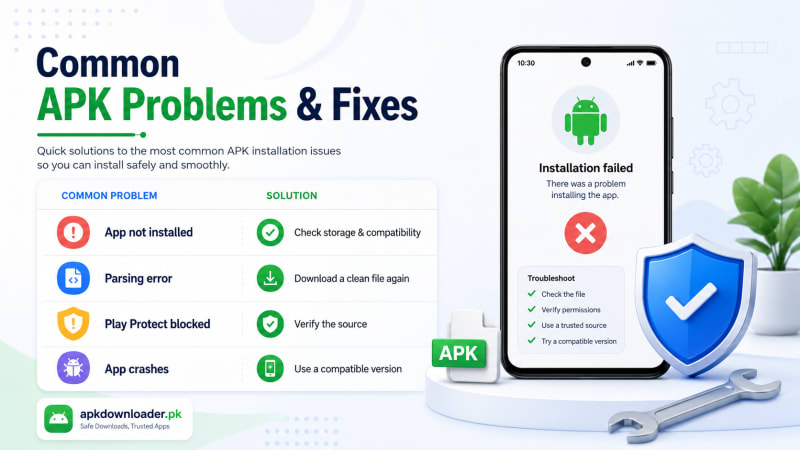
Why an APK Is Not Installing
“App not installed” is a broad Android message. It can point to a storage problem, an incompatible version, a damaged file, or a conflict with an app already on the phone.
Troubleshooting Chart
| Error or Symptom | Likely Cause | What to Try | When to Stop |
|---|---|---|---|
| App not installed | Storage, compatibility, signature, or version conflict | Check storage, Android version, and existing app | Warning remains after a fresh official download |
| Parsing error | Damaged or unsupported package | Delete and download again | Several fresh copies fail |
| APK won’t open | Wrong extension or incomplete file | Confirm it ends in .apk | File type is unknown |
| Play Protect blocks it | Suspicious code or poor reputation | Verify the developer and source | Page tells you to disable protection |
| App crashes | Wrong build, missing files, or unsupported device | Clear data or use a compatible version | It requests unusual permissions |
| Update fails | Signing certificate mismatch | Get the update from the original developer | Update comes from another publisher |
| Install button missing | Screen overlay or restricted profile | Close overlay apps and check restrictions | Device is managed by work or school |
| File disappears | Browser cleanup or security removal | Check Downloads and Play Protect history | Security repeatedly removes the file |
How to Fix “App Not Installed”
Work through these steps in order:
- Restart the phone.
- Free internal storage.
- Confirm the minimum Android requirement.
- Delete incomplete copies of the APK.
- Check whether the app is already installed.
- Compare the installed and downloaded versions.
- Make sure both versions come from the same developer.
- Confirm that the file isn’t one part of a split package.
- Download a clean copy from the verified source.
An APK update may fail when its signing certificate doesn’t match the installed application. Android uses signatures to help prevent an unrelated package from silently replacing an existing app.
Don’t uninstall first without checking
Removing the existing app may delete local progress, downloaded files, saved settings, or account data. Back up anything important before uninstalling.
How to Fix a Parsing Error APK Message
A parsing error means Android couldn’t read or process the installation package correctly.
Common causes include:
- The download stopped before completion
- The file became corrupted
- The APK requires a newer Android version
- Someone renamed another file as
.apk - The package structure is invalid
- The APK was modified incorrectly
- A required split component is missing
Best Fix
Delete the failed file and download it again from the verified source. Compare the new file size with the size shown on the download page.
Don’t keep opening the same damaged file. Repeated attempts won’t repair it.
What to Do When Play Protect Blocks an APK
Don’t treat a Play Protect warning as an inconvenience to bypass.
Pause and check:
- Is the developer clearly identified?
- Is the download domain correct?
- Does the app have a legitimate reason to be outside Google Play?
- Are the version and package details visible?
- Does the app request sensitive permissions?
- Are other users reporting unwanted behavior?
- Does the website insist that you disable security?
Google Play Protect may warn about, block, disable, or remove potentially harmful applications. It can also ask to scan a previously unknown APK downloaded outside Google Play.
Stop the installation when the source gives vague answers or asks you to remove all protection.
Why an App Crashes After Installing an APK
A successful installation only proves that Android accepted the package. It doesn’t guarantee that the app can run correctly on your device.
Possible causes include:
- Unsupported Android version
- Wrong CPU architecture
- Missing split resources
- Outdated Android System WebView
- Damaged app data
- Missing Google services
- Poorly modified code
- Insufficient memory
- A server-side outage
Try These Fixes
- Restart the phone.
- Open Settings → Apps → App name → Storage.
- Clear the cache.
- Update Android System WebView and Chrome.
- Check for a newer compatible APK.
- Confirm that all split components were installed.
- Uninstall the app if crashes continue.
Avoid granting more permissions just to stop a crash. Permissions rarely repair compatibility problems.
Standard APK vs Split APK, XAPK and APKM
Not every Android package opens with the default installer.
| Format | Description | Standard Direct Install? |
|---|---|---|
| APK | A regular Android installation package | Usually |
| Split APK/APKS | A base APK plus device-specific components | Usually requires all matching files |
| XAPK | An archive containing an APK and additional data | Usually not |
| APKM | A third-party package archive | Usually not |
| AAB | Android App Bundle used for app distribution | Not normally installed directly |
If the download is XAPK, APKM, APKS, ZIP, or another archive, don’t rename it to .apk. Renaming the extension doesn’t convert the file.
Use only a compatible installer recommended by a source you trust. Avoid downloading an unknown “universal installer” from a pop-up page.
APK Installation vs Google Play
| Factor | Manual APK | Google Play |
|---|---|---|
| Download source | Website, developer, or third party | Google Play |
| Installation | User opens the package | Store handles it |
| Compatibility checks | Mostly the user’s responsibility | Store filters many incompatible devices |
| Security review | Depends on source and Play Protect | Store checks plus Play Protect |
| Automatic updates | May be unavailable | Usually available |
| Older versions | Sometimes available | Usually not selectable |
| Regional access | May offer more options | Depends on listing availability |
| Update verification | User must check source and signature | Managed through the store |
| Risk level | Varies widely | Generally lower, but not zero |
Pros and Cons of Installing APK Files
Pros
- Access to direct developer releases
- Support for private and beta apps
- More control over app versions
- Access to some region-limited apps
- Ability to use open-source software outside Google Play
- Manual control over update timing
Cons
- Greater malware and privacy risk
- Updates may need to be installed manually
- Higher chance of compatibility errors
- Possible signing-certificate conflicts
- Greater responsibility for checking sources
- More exposure to fake download buttons and misleading claims
What’s New for APK Installation in 2026–2027?
Android is rolling out a broader developer-verification system for apps distributed both inside and outside Google Play.
According to Android’s official guidance, verification protections are scheduled to go live on September 30, 2026 for users in Brazil, Indonesia, Singapore, and Thailand. Android plans a wider global expansion across certified devices in 2027. Pakistan isn’t part of the initial four-country enforcement phase.
The system connects applications with verified developer identities and registered package names. Android is also developing separate options for limited distribution and advanced sideloading flows.
Because rollout details may change, review this section after major Android security announcements.
Frequently Asked Questions
Is installing an APK illegal?
Installing an APK isn’t automatically illegal. It depends on the app, its license, the content it provides, and local laws. Avoid pirated or unauthorized copies.
Can an APK damage my phone?
Yes. A malicious APK may steal information, show intrusive ads, misuse permissions, monitor activity, or install unwanted components.
Can I delete the APK after installing the app?
Yes. Deleting the installer file normally doesn’t remove the installed application.
Where are downloaded APK files stored?
Most browser downloads are saved in the Downloads folder. Open Files, My Files, Files by Google, or your phone’s file manager.
What does “Allow from this source” mean?
It gives a particular app, such as Chrome or a file manager, permission to request app installations. It doesn’t confirm that the APK itself is safe.
Why does my phone show a parsing error?
The package may be incomplete, damaged, incorrectly formatted, modified, or incompatible with your Android version.
Why is Google Play Protect blocking the APK?
Play Protect may have detected suspicious behavior, a harmful component, or an app that hasn’t been evaluated before. Investigate the source instead of ignoring the warning.
Can an APK update an app installed through Google Play?
Sometimes. The package name and signing certificate generally need to match the installed application.
What is a split APK?
A split APK separates the base application from components for language, screen type, processor, or other device requirements. Installing only one part may cause an error.
Should I leave “Allow from this source” enabled?
No. Turn it off after installation unless you regularly install verified files through that same app.
Is a real-money or color-prediction APK safe?
The category alone doesn’t prove safety. Check the operator, permissions, payment terms, identity, and local requirements before installing or depositing money.
Can I install an APK on an iPhone?
No. APK is an Android package format. iPhones use a different app-distribution and installation system.
Final Verdict
Installing an APK isn’t difficult. Deciding whether the file deserves access to your phone is the part that requires judgment.
Check the developer before the download, read the permissions before the first login, and pay attention when Android raises a warning. A trustworthy app shouldn’t need you to surrender your wallet PIN, OTP, CNIC, messages, or complete control of the device.
Take one final step after every manual installation: turn off Allow from this source. That small habit closes the door you opened and leaves your phone better protected for the next download.
Games Mentioned in This Article

Related Articles


Ready to download the APK?
Download the latest verified APK, register with OTP, and claim your welcome bonus. 18+ only — play responsibly.
Download Latest APK